
How to Use a Scientific Calculator Online (Step by Step)
Most students open a scientific calculator online and freeze. There are so many buttons and most of them look nothing like what they teach in class. If you have ever accidentally gotten the wrong answer because of the wrong mode or pressed the wrong function, this guide will fix that.
You can use the free scientific calculator on CalcSolver directly from your browser, no download required, and follow this step-by-step guide to understand every function properly.
What Is a Scientific Calculator and What Can It Do
A basic calculator handles addition, subtraction, multiplication, and division. A scientific calculator goes much further. It handles:
- Trigonometric functions: sin, cos, tan and their inverses
- Logarithms: log (base 10) and ln (natural log)
- Exponents and powers: x², xʸ, square root
- Factorials: n!
- Constants: π (pi) and e (Euler’s number)
- Memory functions: M+, M-, MR, MC
- Order of operations using parentheses
It is the tool you need from high school algebra onward, whether you are solving geometry problems, physics equations, or compound interest calculations.
Step-by-Step: How to Use a Scientific Calculator Online
Step 1: Open the Calculator and Check the Interface
Go to your online scientific calculator. Before you type anything, look at the display area and the button layout. Most online scientific calculators, including CalcSolver, show buttons for:
- Numbers 0 to 9 and a decimal point
- Basic operators (+, -, ×, ÷)
- Scientific functions (sin, cos, tan, log, ln, √, x², xʸ)
- Parentheses ( )
- Constants (π, e)
- Memory keys (M+, M-, MR, MC)
- Clear buttons (AC or C, and backspace)
- DEG/RAD mode toggle
Take 30 seconds to look at where all of these sit before you start calculating.
Step 2: Set the Angle Mode First (DEG or RAD)
This is the most common mistake students make. If you are using trigonometric functions (sin, cos, tan), you must set the correct angle mode before you calculate anything.
| Mode | When to Use |
|---|---|
| DEG (Degrees) | Geometry, everyday trig problems, high school math |
| RAD (Radians) | Calculus, physics, higher-level mathematics |
If your calculator is in RAD mode and you type sin(90), you will get 0.894, not 1. The correct answer for sin(90°) is 1, but only when you are in DEG mode.
Always check the mode before starting any trigonometry calculation.
Step 3: Enter Numbers and Operators
Click the number buttons or type directly using your keyboard. Use the operator buttons for basic math. The order of operations follows standard BODMAS/PEMDAS rules, so brackets go first.
For example, to calculate (15 + 5) × 3:
- Click ( then 1 then 5
- Click +
- Click 5 then )
- Click ×
- Click 3
- Click = to get 60
If you skip the brackets and type 15 + 5 × 3, you get 30 because multiplication happens before addition.
Step 4: Use Trigonometric Functions (sin, cos, tan)
These three functions are the most used on any scientific calculator. Here is how to use them properly.
To find sin(45°):
- Make sure you are in DEG mode
- Click sin
- Type 45
- Close the bracket if needed
- Click = and get 0.7071
To find an unknown angle (inverse trig): If the sine of an angle equals 0.5, find the angle:
- Click sin⁻¹ (sometimes requires pressing SHIFT or 2nd first)
- Type 0.5
- Click = and get 30 (degrees)
The same process works for cos and tan. Use cos⁻¹ and tan⁻¹ for inverse calculations.
Step 5: Use Logarithms (log and ln)
There are two types of logarithm on a scientific calculator and they are different.
| Function | Base | Example |
|---|---|---|
| log | Base 10 | log(100) = 2 because 10² = 100 |
| ln | Base e (≈2.718) | ln(e) = 1 |
To calculate log(1000):
- Click log
- Type 1000
- Click = and get 3
To calculate ln(7.389):
- Click ln
- Type 7.389
- Click = and get approximately 2
Use log for pH calculations, decibel levels, and most chemistry problems. Use ln for calculus, decay formulas, and growth rate problems.
Step 6: Work With Exponents and Powers
| Button | What It Does | Example |
|---|---|---|
| x² | Squares the number | 5² = 25 |
| xʸ | Raises to any power | 2⁵ = 32 |
| √ | Square root | √81 = 9 |
| 1/x | Reciprocal | 1/4 = 0.25 |
To calculate 3 to the power of 4:
- Type 3
- Click xʸ
- Type 4
- Click = and get 81
Step 7: Use Memory Functions for Multi-Step Problems
When a calculation has multiple steps, do not retype numbers. Use the memory buttons to store and recall values.
| Button | What It Does |
|---|---|
| M+ | Adds current display to memory |
| M- | Subtracts current display from memory |
| MR | Recalls the stored value |
| MC | Clears the memory |
Example: You calculated that one part of a problem equals 47.83. You need that number later. Click M+ to save it. Do your other steps. When you need 47.83 again, click MR.
This avoids rounding errors from retyping and keeps your calculation accurate.
Step 8: Use π and e as Constants
Click the π button to insert 3.14159265… automatically. Click e to insert 2.71828182… Both values are precise, so never type approximations manually.
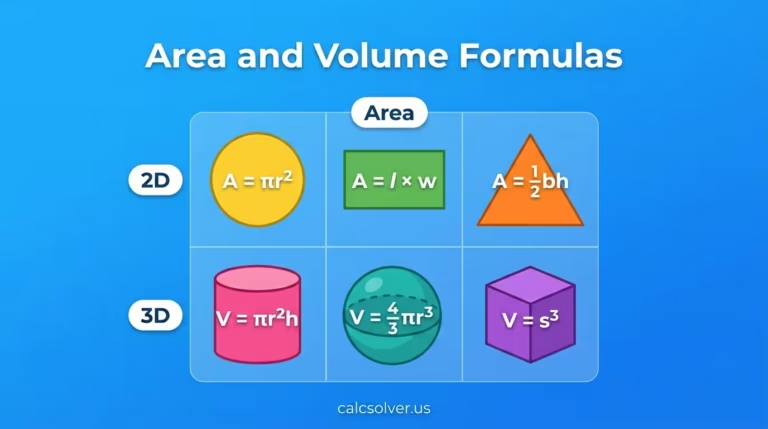
To find the area of a circle with radius 5: Formula: A = πr²
- Click π
- Click ×
- Type 5
- Click x²
- Click = and get 78.5398
Common Mistakes to Avoid
Wrong Angle Mode
Forgetting to switch between DEG and RAD is the number one error. Always check the mode display before any trig calculation.
Missing Brackets
sin 30 + 60 is not the same as sin(30 + 60). The first gives sin(30) + 60 = 60.5. The second gives sin(90) = 1. Use brackets to be precise.
Confusing log and ln
These are not interchangeable. Log uses base 10. Ln uses base e. In chemistry, log is used for pH. In calculus, ln appears in derivatives and integrals. Know which one your problem needs.
Typing Negative Numbers Wrong
To enter -5, you do not press the minus sign first. On most calculators, type 5 then press the +/- or negative sign button. Some online calculators accept typing a minus before the digit. Check how your calculator handles this before calculating.
Quick Reference Table: Scientific Calculator Functions
| Button | Name | Use Case |
|---|---|---|
| sin, cos, tan | Trig functions | Angles, triangles, waves |
| sin⁻¹, cos⁻¹, tan⁻¹ | Inverse trig | Finding unknown angles |
| log | Common logarithm | pH, sound levels, scales |
| ln | Natural logarithm | Calculus, growth/decay |
| x² | Square | Area, quadratic equations |
| xʸ | Power | Exponents, compound interest |
| √ | Square root | Geometry, Pythagorean theorem |
| n! | Factorial | Combinations, probability |
| π | Pi (3.14159…) | Circle calculations |
| e | Euler’s number | Natural growth, finance |
| M+/MR | Memory | Multi-step calculations |
When to Use a Scientific Calculator Online vs a Basic One
If your calculation only involves +, -, ×, ÷, a basic calculator is enough. The moment your problem includes angles, logarithms, square roots, or exponents, switch to a scientific calculator.
Students in Class 9 and above typically need a scientific calculator for math and physics. Engineers and scientists use it for most technical work. Financial analysts use it for compound interest, present value, and loan calculations.
The CalcSolver online scientific calculator covers all of these without needing an app or login.
Frequently Asked Questions
What is the difference between a scientific calculator and a basic calculator?
A basic calculator handles the four arithmetic operations only. A scientific calculator adds trigonometric functions, logarithms, exponents, roots, factorials, constants like π and e, and memory functions. You need it for any math beyond simple arithmetic.
How do I switch between degrees and radians on an online scientific calculator?
Look for a DEG or RAD button on the interface. Click it to toggle between the two modes. Always set this before running trig calculations. DEG mode is for everyday geometry. RAD mode is for calculus and physics.
Why is my sin or cos answer wrong?
The most likely reason is that your calculator is in the wrong angle mode. If you want sin(90) and the answer is not 1, you are in RAD mode. Switch to DEG mode and recalculate.
What does the ln button do on a scientific calculator?
Ln is the natural logarithm, which uses Euler’s number (e ≈ 2.718) as its base. It is different from log, which uses base 10. Ln is used in calculus derivatives, exponential decay, and population growth formulas.
Can I use a scientific calculator online for exams?
Most school exams allow students to use an online scientific calculator for homework and practice. For actual exams, check your institution’s rules since some require physical calculators in the exam room.
How do I calculate compound interest on a scientific calculator?
Use the formula A = P(1 + r/n)^(nt). Enter P first, then multiply by (1 + r/n) using the xʸ button to raise it to the power nt. CalcSolver’s compound interest calculator can also handle this directly if you prefer.
Wrapping Up
A scientific calculator online is not complicated once you know what each button does. Set the right mode, use brackets, understand the difference between log and ln, and use memory functions for multi-step problems. Those four habits alone will fix most calculation errors.
Start with simple practice: calculate sin(30) in DEG mode, find log(100), compute 2 to the power of 8. Once those feel easy, move to multi-step problems. The tool does the math. Your job is to know what to ask it.